
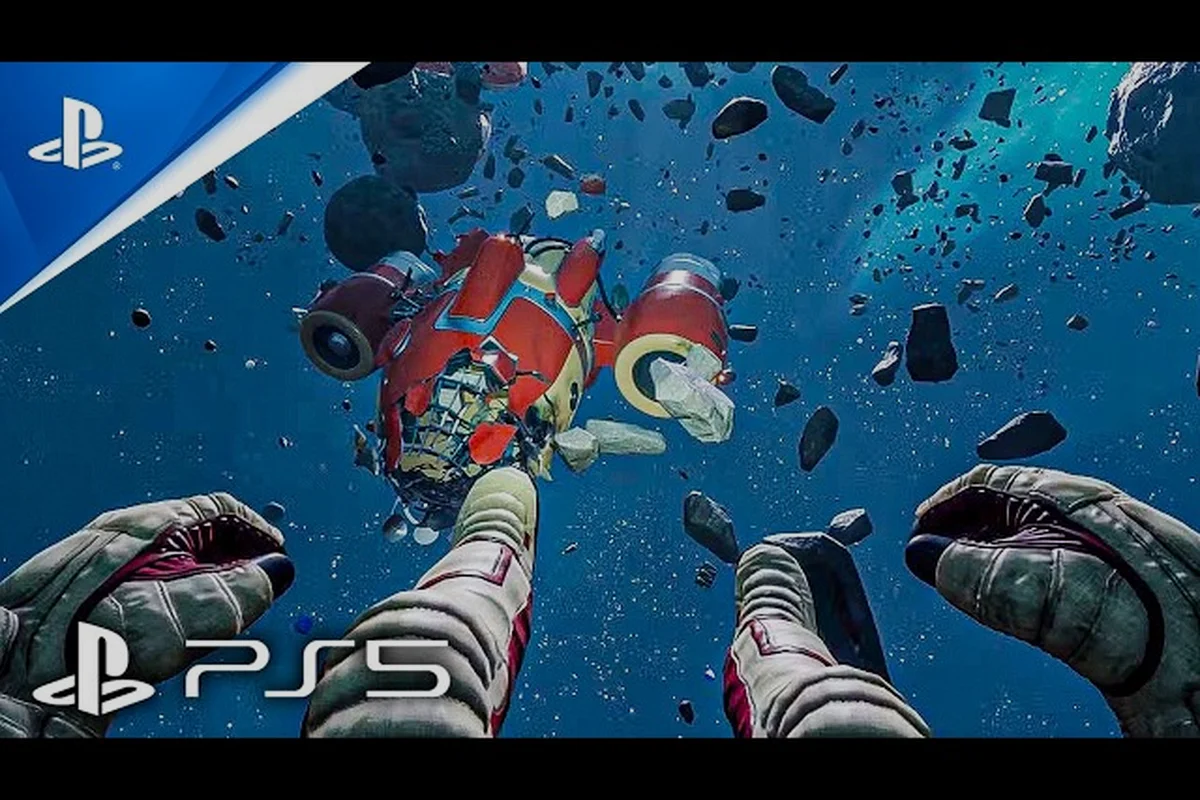
Finding the right Breathedge 2 best settings transforms a choppy spacewalk into a buttery-smooth zero-g drift through debris fields. Early Access builds rarely ship with perfect optimization, and your hardware combination matters more than any single magic slider. This Breathedge 2 settings guide unpacks the graphics options that actually move your frame counter, plus the fixes for freezing, crashes, and Steam Deck quirks.
Breathedge 2 Best Settings for Low-End and Mid-Range PCs
Optimizing Breathedge 2 starts with understanding where your system sits relative to the official requirements. The minimum spec asks for an Intel Core i5-8400 or AMD Ryzen 5 2600, 12 GB of RAM, and a GTX 1660 6GB or RX 5500 XT 6GB, while the recommended tier jumps to an RTX 3070 8GB or RX 6700 XT 8GB with 16 GB of RAM. Most players land somewhere between those two brackets, which means the default graphics preset rarely matches their machine.
The first setting to touch is Shadow Quality. Shadows are the single most expensive visual feature in the game, and dropping them from Ultra to Medium often recovers 15-20 frames per second on mid-range GPUs. The visual difference in space is minimal because most scenes rely on directional starlight rather than complex ambient occlusion. Next, set Volumetric Fog to Low or Off. Fog rendering in zero-g environments adds atmospheric depth, but the performance cost on GTX 1660-class cards is disproportionate to the benefit.
The following table summarizes the impact of each major graphics option on performance, measured at 1080p with an RTX 3060 and Ryzen 5 5600X during the open-space salvage sequences where draw distance and debris physics are heaviest. Options like Shadow Quality and Volumetric Fog consistently show the largest frame-time spikes in oxygen-rich asteroid fields, while Texture Quality costs almost nothing on 8 GB VRAM cards but causes stuttering on 4 GB models when the Breathedge 2 crafting UI and inventory overlays load high-resolution material previews.
| Graphics Option | Performance Impact | Visual Impact | Recommended Setting |
|---|---|---|---|
| Shadow Quality | Very High | Low in space | Medium or Low |
| Volumetric Fog | High | Medium | Low or Off |
| Texture Quality | Medium | High | High (if VRAM ≥ 8GB) |
| Anti-Aliasing | Medium | Medium | TAA or FXAA |
| Post-Processing | Medium | Medium | Medium |
| Draw Distance | High | High | Medium |
Texture Quality deserves special attention because it affects VRAM usage more than raw FPS. If your GPU has 8GB or more VRAM, keep textures on High because the performance penalty is negligible while the visual clarity of ship interiors and debris improves significantly. On 6GB cards, Medium textures prevent stuttering when the game streams in new assets. Players on 12 GB RAM systems should also close background browsers, because Breathedge 2's memory footprint can exceed 10 GB during extended sessions, pushing the system into page-file territory and causing the exact stuttering that many players blame on graphics settings.
Prioritizing Frame Rate Over Visual Fidelity
Competitive players and those on 60 Hz displays should target a locked frame rate rather than chasing the highest average. Use the in-game Frame Rate Limiter to cap FPS at your monitor's refresh rate, which reduces GPU load and prevents the wild frame-time swings that feel worse than a lower average. If your display supports V-Sync, enable it only when you see screen tearing during fast camera pans; otherwise leave it off to avoid input latency.
Anti-aliasing choice depends on your GPU vendor and personal sensitivity to jagged edges. TAA provides the cleanest image on modern cards but introduces slight blur during motion, while FXAA is cheaper and sharper but leaves more aliasing artifacts. Players on AMD cards should test FidelityFX Super Resolution if the Early Access build exposes it, because upscaling from a lower internal resolution can deliver massive frame-rate gains with acceptable visual loss on 1440p and 4K displays.
Breathedge 2 Graphics Options Deep Dive: What Each Slider Actually Does
Understanding the Breathedge 2 graphics options requires separating the settings that tax your GPU from those that hit your CPU. Space games with large open areas and many physics objects put unusual strain on both, and knowing which component is your bottleneck changes the optimization strategy completely. A GPU-bound system benefits from lowering resolution and shader-heavy options, while a CPU-bound system needs reduced draw distance and physics object counts.
The following table breaks down each major option by the component it stresses, so you can quickly identify which sliders to drop first when your framerate dips below 60 FPS on a mid-range GPU. For instance, Volumetric Fog and Screen-Space Reflections hammer the GPU's shading and fill-rate pipelines during scenes inside derelict station modules, while Shadow Quality and Draw Distance spike CPU draw-call overhead when the camera pans across large debris fields or asteroid clusters. Knowing this split matters because Breathedge 2's space environments mix dense interior geometry with vast exterior vistas, and a single "Low" preset rarely targets the right bottleneck for both — you'll often get smoother results by manually cutting the two most expensive GPU-bound options and leaving CPU-bound settings near Medium.
| Graphics Option | Primary Component Affected | Best For GPU-Bound Systems | Best For CPU-Bound Systems |
|---|---|---|---|
| Resolution Scale | GPU | Lower to 80-90% | Keep at 100% |
| Draw Distance | CPU | Medium | Low |
| Shadow Quality | GPU | Low | Medium |
| Physics Object Count | CPU | High | Low |
| Texture Quality | VRAM | Medium | High |
| Anti-Aliasing | GPU | FXAA | TAA |
Resolution Scale is the most powerful tool in the entire settings menu. Dropping from 100% to 85% delivers a 20-30% frame-rate improvement on most GPUs while remaining visually acceptable on 1080p displays. On 1440p, an 85% internal resolution still looks sharper than native 1080p but renders far fewer pixels than native 1440p. This single slider often outperforms all other combined tweaks for players hovering just below their frame-rate target.
Balancing Visual Clarity Against Performance Ceilings
Post-Processing controls bloom, motion blur, depth of field, and chromatic aberration in a single bundle. Motion blur is particularly divisive in space games because fast camera rotation in zero-g already creates natural motion artifacts. Turning post-processing down to Medium removes the most expensive effects while keeping the color grading that defines Breathedge 2's satirical retro-future aesthetic. Players who experience motion sickness should disable motion blur entirely, even at a small performance cost elsewhere.
Draw Distance affects how far you can see debris, stations, and floating objects before they pop into existence. The performance impact scales with CPU core speed because the game must simulate physics for every visible object. On Ryzen 5 2600 or older CPUs, reducing draw distance to Medium can eliminate the micro-freezes that occur when entering new areas. The visual trade-off is acceptable because the most important gameplay objects—your ship, nearby resources, and quest markers—remain visible at much shorter distances than the maximum setting.
Breathedge 2 Controller Support and Steam Deck Optimization
Breathedge 2 controller support is a first-class feature on the Steam store page, with full DualShock and DualSense compatibility listed alongside standard Xbox controllers. The game's zero-g movement and vehicle controls map surprisingly well to analog sticks, and many players prefer a controller for the relaxed exploration segments while switching to mouse and keyboard for precise inventory management. Steam Input handles the translation automatically, but you can remap any button through the Steam overlay.
Steam Deck owners face a unique set of challenges because the handheld's custom AMD APU sits below the minimum desktop requirements in raw GPU performance. The Breathedge 2 Steam Deck experience depends almost entirely on aggressive settings optimization. Target 30 FPS rather than 60, set Resolution Scale to 70%, disable Volumetric Fog, and set Shadows to Low. The 800p screen hides many visual compromises, and the game's art style holds up well even at reduced fidelity.
The table below shows recommended Steam Deck configurations for different priorities, balancing visual fidelity against battery drain and thermal throttling during long salvage runs. For maximum frame-time stability at 40 FPS, cap the TDP at 11W and set the GPU clock to 1100 MHz; if you prioritize battery life while drifting through asteroid fields, drop the render scale to 85% and lock 30 FPS with FSR 2.2 on Quality, which reduces GPU-bound hitching when the Normandy-style wreck interiors stream in.
| Priority | Resolution Scale | Shadow Quality | Volumetric Fog | Target FPS | Battery Drain |
|---|---|---|---|---|---|
| Maximum Battery | 60% | Low | Off | 30 FPS | Low |
| Balanced | 70% | Low | Off | 30 FPS | Medium |
| Visual Quality | 80% | Medium | Low | 30 FPS | High |
| Docked Mode | 85% | Medium | Low | 40 FPS | N/A |
The game's physics-heavy space areas push the Steam Deck's CPU harder than its GPU, which means Draw Distance and Physics Object Count matter more than texture settings. Reducing both to their lowest values prevents the frame-time spikes that occur when the game simulates dozens of floating objects simultaneously. Players report that the vehicle controls translate well to the Deck's dual analog sticks, making the handheld a surprisingly capable platform for short exploration sessions despite the visual compromises.
Remapping Controls for Comfort in Zero-G
Default controller mappings place thrust on the left stick and camera rotation on the right, but many players find that roll control deserves a dedicated button or trigger. In zero-g, rolling your body to match a station's orientation is a frequent action, and the default mapping often requires awkward stick combinations. Use Steam Input to bind roll to the shoulder buttons, freeing up the face buttons for quick inventory actions.
The DualSense's adaptive triggers work in Breathedge 2 when connected via USB, adding resistance when firing tools or activating the grapple. This feature is cosmetic rather than performance-related, but it enhances immersion without affecting frame rate. Wireless Bluetooth connections may disable adaptive triggers on some systems, so use a wired connection if you want the full effect.
Fixing Breathedge 2 Crash and Freezing Issues
Breathedge 2 crash fix strategies begin with identifying whether the game crashes to desktop, freezes with audio continuing, or hard-locks the entire system. Each symptom points to a different root cause. Desktop crashes during loading screens usually indicate memory pressure or shader compilation issues, while freezes during gameplay often stem from physics simulation overload or driver conflicts. Hard system locks are the most serious and typically involve overheating or unstable overclocks.
The following table matches common crash symptoms to their most likely fixes: startup CTDs (crash-to-desktop) on the Unreal Engine splash screen usually point to corrupted shader cache files, which you can clear from %LOCALAPPDATA%\Breathedge2\Saved\ before relaunching, while mid-game freezes during vacuum transitions or airlock loading are frequently caused by the volumetric fog and screen-space reflections settings fighting for VRAM on 8 GB cards — dropping both to Medium and capping FPS at 60 in the graphics options resolves the majority of reported freezes without a full settings reset.
| Symptom | Likely Cause | Immediate Fix | Long-Term Solution |
|---|---|---|---|
| Crash during loading | Insufficient RAM | Close background apps | Upgrade to 16 GB RAM |
| Freeze during gameplay | Physics overload | Lower Physics Object Count | Reduce Draw Distance |
| Crash after 30+ minutes | Memory leak | Restart game session | Wait for EA patch |
| Freeze on area transition | Shader compilation | Clear shader cache | Update GPU drivers |
| Hard system lock | Overheating/overclock | Remove overclocks | Improve case cooling |
The Breathedge 2 freezing fix that works for the most players is clearing the DirectX shader cache after updating GPU drivers. Stale shader caches cause stuttering and freezes when the game tries to compile shaders on the fly, particularly in new areas. In Windows, navigate to Disk Cleanup, select DirectX Shader Cache, and delete it. The game rebuilds the cache on next launch, which may cause a slower first load but eliminates most freeze issues afterward.
Driver Updates and Windows Optimization
Outdated GPU drivers are the most common cause of crash-to-desktop issues in Early Access titles. Both NVIDIA and AMD release game-ready drivers for major launches, and Breathedge 2's Early Access debut on August 31, 2026 will likely receive specific optimizations in driver updates released around that date. Install the latest drivers before troubleshooting any other crash fix, because the game's physics engine relies on driver-level features that older versions may not expose correctly.
Windows background processes also contribute to crashes on systems with only 12 GB of RAM. The official Steam page lists 12 GB as the minimum, but Windows 10 and 11 themselves consume 3-4 GB at idle. That leaves barely 8 GB for the game, and any memory spike—loading a new area, triggering a physics-heavy event—can push the system into a crash. Use Task Manager to close browsers, Discord, and overlay software before launching Breathedge 2.
Optimizing for Long Play Sessions and Stability
Extended Breathedge 2 sessions reveal stability patterns that short benchmark runs miss. Players report that memory usage climbs steadily over 2-3 hours of continuous play, suggesting an Early Access memory leak that manifests as progressive stuttering and eventual crashes. Restarting the game every 90-120 minutes is a practical workaround that costs little time and prevents most stability issues.
The system requirements guide details the exact hardware thresholds for each quality tier, but the practical takeaway is that 16 GB of RAM provides a much smoother experience than the 12 GB minimum. The memory headroom absorbs the Early Access leaks and background process spikes without pushing the system into page-file thrashing. Players on 12 GB systems should consider upgrading RAM before investing in a new GPU, because the performance return per dollar is significantly higher for this specific game.
| Session Length | Memory Usage Trend | Stability Risk | Recommended Action |
|---|---|---|---|
| Under 60 minutes | Stable | Low | No action needed |
| 60-120 minutes | Gradual increase | Medium | Monitor performance |
| 120-180 minutes | Noticeable climb | High | Save and restart |
| 180+ minutes | Critical pressure | Very High | Mandatory restart |
The game's auto-save system checkpoints frequently, so restarting mid-session loses minimal progress. Players who manage their save file locations manually can create backup copies before long sessions, providing insurance against the rare crash that corrupts a save. Steam Cloud synchronization handles this automatically for most players, but manual backups add an extra layer of protection during Early Access.
Frequently Asked Questions
What are the best Breathedge 2 settings for a GTX 1660?
Set Resolution Scale to 90%, Shadow Quality to Low, Volumetric Fog to Off, and Texture Quality to Medium. Target 60 FPS at 1080p with Anti-Aliasing on FXAA. Draw Distance should stay at Medium to reduce CPU load, and Post-Processing on Low eliminates the most expensive effects.
Does Breathedge 2 support controllers on PC?
Yes, Breathedge 2 controller support includes Xbox, DualShock, and DualSense controllers through Steam Input. The game automatically detects connected controllers, and Steam's remapping tools allow custom bindings for roll, thrust, and inventory actions. Adaptive triggers work on DualSense when connected via USB.
Why does Breathedge 2 freeze when I enter new areas?
Freezing during area transitions typically indicates shader compilation stutter or CPU-bound draw distance settings. Clear the DirectX shader cache after updating GPU drivers, reduce Draw Distance to Medium, and lower Physics Object Count. These three changes eliminate most transition freezes on mid-range systems.
Can I play Breathedge 2 on Steam Deck?
Yes, the Breathedge 2 Steam Deck experience is playable at 30 FPS with Resolution Scale at 70%, Shadows on Low, and Volumetric Fog disabled. The game's physics-heavy areas require reduced Draw Distance and Physics Object Count to prevent frame-time spikes. Expect roughly 2 hours of battery life on balanced settings.
How do I fix Breathedge 2 crashing on startup?
Update your GPU drivers, then verify game files through Steam. If crashes persist, confirm your system meets the 12 GB RAM minimum and close background apps. Launching as administrator and disabling overlays like Discord also resolves startup crashes for many players.