
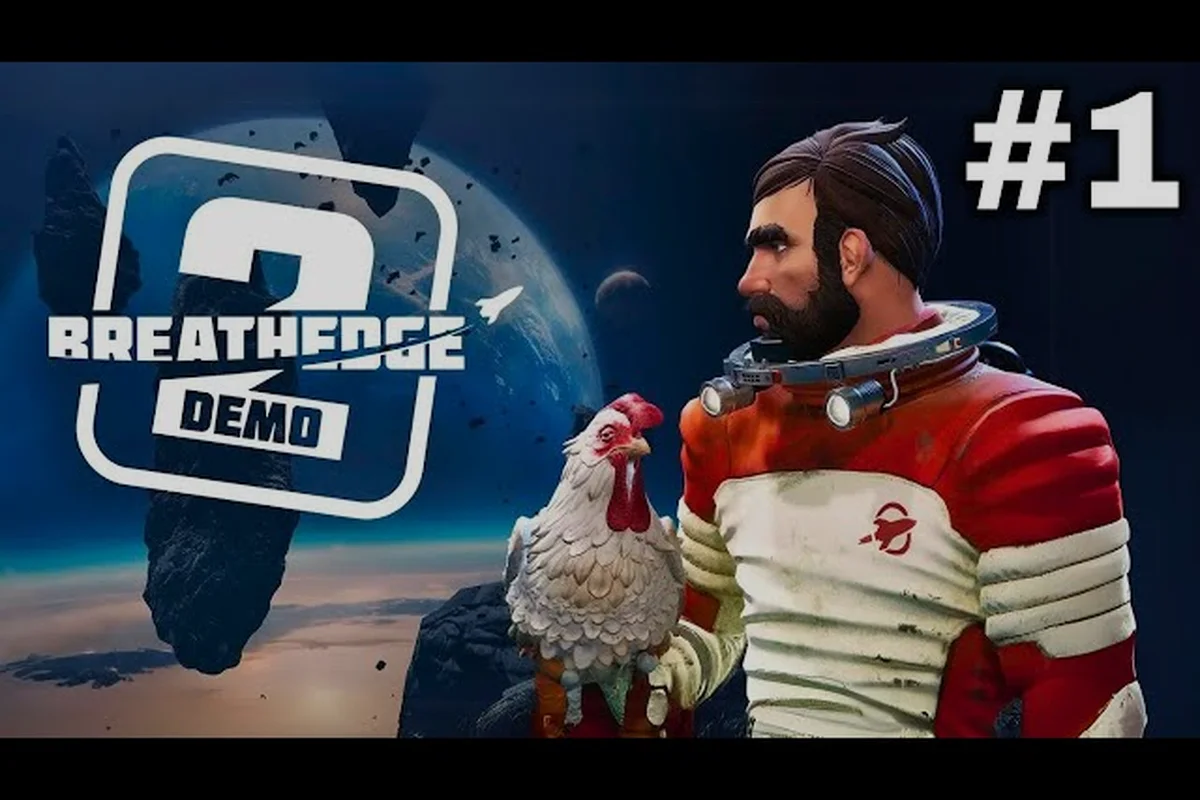
Getting comfortable with the Breathedge 2 controls early prevents a lot of frustrating deaths in open space, especially when you are juggling oxygen, crafting menus, and hostile Coffinbots at the same time. The game ships with full gamepad support alongside a complete keyboard and mouse layout, so your input choice is not a compromise but a genuine preference. Understanding how keybindings, autosave behavior, and occasional early access bugs interact will save you from losing progress or fumbling a critical repair.
According to the official Breathedge 2 Steam page, the controls build on the first game’s zero-gravity navigation while adding new contextual interactions for the expanded crafting and repair systems.
Core Control Layout and Input Philosophy
Breathedge 2 inherits much of its control DNA from the original Breathedge while expanding the bindings to cover new systems like crew management, vehicle operation, and planetary exploration. The Steam store listing confirms Full controller support, including DualShock Controller Support and DualSense Controller Support, which means PlayStation controllers work natively without third-party wrappers. That is a meaningful upgrade for players who prefer a gamepad but do not want to spend twenty minutes remapping everything.
The default keyboard layout centers on familiar survival-crafting conventions. Movement uses the standard WASD cluster, with Space for jump or vertical thrust in zero-gravity sections and Left Ctrl or C for crouch. Interaction is typically bound to E, while the inventory and crafting radial menu open with Tab or I. Sprint, when available inside pressurized interiors or on planetary surfaces, usually sits on Left Shift. Because the game mixes zero-gravity traversal with ground movement, you will constantly switch between thrust-based and walk-based control modes, which is why the keybinding screen separates movement from vehicle and interface actions.
The most important early habit is rebinding your quick-use and inventory keys to positions you can hit without looking. In a crisis where your oxygen alarm is blaring, reaching across the keyboard for a default binding wastes seconds you do not have. Community reports from the demo and early access build consistently mention that the default interact key occasionally conflicts with contextual prompts during ship repairs, so checking the binding menu before your first long session is worth the two minutes.
| Input Device | Default Movement | Primary Interact | Menu/Inventory | Notes |
|---|---|---|---|---|
| Keyboard + Mouse | WASD | E | Tab or I | Fastest menu navigation, precise aiming |
| Xbox-style Gamepad | Left Stick | A (South) | View/Select Button | Native support, no remap needed |
| DualSense/DualShock | Left Stick | Cross (X) | Touchpad Button | Official support listed on Steam |
| Steam Deck | Left Stick or Trackpad | A | View Button | Community reports stable default layout |
The table above summarizes the baseline expectations, but Breathedge 2 does not lock you into any single scheme. The settings menu includes separate tabs for On Foot, Vehicle, and UI bindings, which means you can have one layout for walking around your ship and a completely different set for piloting a planetary rover. Because the game frequently transitions between these states, setting both profiles intentionally prevents the jarring moment where your muscle memory presses the wrong button during a timed sequence.
Keybinding Deep Dive: What to Rebind First
Not every default Breathedge 2 keybinding deserves to stay where the developers placed it. Some bindings are fine for slow, deliberate play but become liabilities during combat or emergency repairs. The first candidates for rebinding are actions you use constantly under pressure, especially those tied to oxygen management, tool switching, and crafting shortcuts.
The quick-slot bar is the single most underrated control surface in the game. By default, number keys 1 through 0 map to your equipped tools and consumables, but reaching past 5 forces you to move your hand off the movement cluster. Rebind slots 6 through 0 to keys closer to WASD, such as F, X, Z, Q, and R, assuming those are not already occupied by essential functions. This keeps your left hand anchored while your right hand manages the mouse, which is crucial when a Coffinbot closes distance and you need to switch from the cutter to a repair tool instantly.
A second high-priority rebind is free-look or head-look if you are using keyboard and mouse. The default toggle often sits on Left Alt, which works but can interfere with Alt-Tab habits. Many players move it to Middle Mouse Button or a side mouse button for smoother scanning during exploration. Because Breathedge 2 rewards players who visually scan wreckage for salvageable components, a comfortable free-look binding pays off constantly.
| Action | Default Binding | Recommended Rebind | Why It Matters |
|---|---|---|---|
| Quick Slot 6-0 | Number Row | F, X, Z, Q, R | Keeps hand near WASD |
| Free-Look | Left Alt | Middle Mouse / Side Button | Faster salvage scanning |
| Toggle Flashlight | F (often) | Mouse Side Button | Emergency visibility without losing movement |
| Open Map | M | Tab (if inventory moved) | Quick orientation check |
| Push-to-Talk (if added later) | None | Left Alt | Prepare for potential co-op tools |
This is not a one-size-fits-all prescription. If you are a left-handed player or use an unconventional mouse, the entire priority order changes. The core principle remains the same: actions you need while moving should never require you to stop moving. Breathedge 2 punishes stationary targets in both combat and environmental hazards, so a binding that forces you to lift your fingers off WASD is a liability.
Understanding Contextual Actions and Prompts
Breathedge 2 uses contextual action prompts heavily, which means the same button performs different functions depending on what you are looking at. The Interact key handles opening containers, starting conversations, boarding vehicles, and initiating repairs. While this reduces the total number of bindings you need to memorize, it also creates situations where the game misreads your intent and triggers the wrong action.
For example, standing near a ship panel while also aiming at a floating debris item can cause the prompt to flicker between Repair and Pick Up. Community reports from the early access build describe this as a minor but persistent annoyance, particularly in tight interior spaces. The best mitigation is to move your crosshair deliberately onto the object you want before pressing the button, rather than relying on the game to prioritize correctly. In some cases, adjusting the interaction reticle size in the accessibility settings reduces the overlap.
Another contextual layer involves the vehicle control scheme, which activates the moment you enter a rover or ship seat. The throttle, steering, and camera controls are separate from on-foot bindings, and the game does not always tell you when a specific vehicle uses a different input. The Breathedge 2 ship management guide covers how ship controls interact with the broader module system, but the immediate takeaway is that you should test vehicle bindings in a safe area before relying on them during a timed escape.
Gamepad Support and Controller Tuning
The official Steam page for Breathedge 2 lists Full controller support with specific mention of DualShock Controller Support and DualSense Controller Support, which is a strong signal that the developers tested gamepad input as a first-class experience rather than an afterthought. This matters because the original Breathedge had inconsistent controller behavior at launch, and the sequel appears to have addressed that early.
On a standard Xbox-style pad, the default layout maps movement to the Left Stick, camera to the Right Stick, interact to A, jump or vertical thrust to A or B depending on context, and sprint to Left Stick Click. The D-pad typically handles quick-slot navigation, while the Bumpers switch between tool categories. This layout works well for exploration and crafting but can feel cramped during combat when you need to aim precisely while managing oxygen.
The biggest controller-specific challenge is inventory management. Navigating a grid-based inventory with a stick is inherently slower than using a mouse, and Breathedge 2 does not currently offer a cursor-snapping option that fully solves this. One workaround is to use the Right Stick for coarse movement and the D-pad for fine selection, but this still feels clunky during high-stress looting. Players who primarily use a gamepad often report that they save inventory sorting for safe zones and use the quick-slot bar for in-the-field actions.
| Controller Feature | Status | Notes |
|---|---|---|
| Xbox Controller | Native | No remap required |
| DualShock 4 | Native | Listed on Steam store |
| DualSense | Native | Haptic feedback may be limited on PC |
| Steam Deck | Playable | Community reports stable but not verified by developer |
| Gyro Aiming | Not Confirmed | No official statement as of early access launch |
| Button Remapping | Available | In-game settings + Steam Input support |
Steam Input adds another layer of flexibility for controller users. Because Breathedge 2 runs through Steam, you can create custom controller profiles, adjust stick dead zones, and even assign keyboard functions to gamepad buttons through the Steam overlay. This is especially useful for players who want a radial menu for crafting or a dedicated quick-save button on the controller, neither of which is available by default.
Steam Deck and Portable Play
The Steam Deck is an increasingly common way to play early access survival games, and Breathedge 2 is no exception. While the developers have not released an official Steam Deck Verified badge as of the early access launch, community testing indicates the game runs and the default controller layout works acceptably. The primary concern on the Deck is text legibility and battery drain during long exploration sessions.
Because the Deck's screen is smaller than a typical monitor, the default UI scale can make inventory item descriptions and mission text difficult to read. Adjusting the UI Scale setting upward helps, but this may cause the crafting menu to clip on certain resolutions. Players also report that the game's zero-gravity traversal drains the Deck's battery faster than ground-based survival games, so keeping a charger nearby is advisable for sessions longer than ninety minutes.
Autosave Behavior and Progress Protection
Understanding how Breathedge 2 autosaves is as important as knowing the controls, because losing thirty minutes of progress to an unexpected crash can sour an entire session. The game uses a checkpoint-based autosave system rather than a continuous save, which means progress is recorded at specific triggers: entering a new area, completing a story beat, or finishing a major crafting milestone.
The exact frequency of autosaves varies by context. During free exploration, the game may go several minutes without saving if you are not triggering any checkpoints. During story missions, autosaves are more frequent and often occur at the start and end of scripted sequences. This design choice reduces save-file bloat but creates risk windows where a crash can erase meaningful progress.
| Save Trigger | Typical Frequency | Risk Window |
|---|---|---|
| Area Transition | High | Low |
| Story Beat | Medium | Medium |
| Crafting Milestone | Low | High |
| Manual Save (if available) | Player-Controlled | None |
| Vehicle Board/Exit | Medium | Medium |
| Crew Assignment Change | Low | High |
The table above is based on community observations during the demo and early access period, so exact timing may shift with patches. The safest habit is to pause and trigger a known checkpoint before attempting risky activities like long-range travel, major ship repairs, or combat encounters. Because the game does not currently offer a manual save button on the controller by default, keyboard players have an advantage in this specific scenario.
Crash Prevention and Recovery
Breathedge 2 crashes are a reality of the early access period, and while the developers have been responsive with hotfixes, players should still prepare for occasional instability. The most commonly reported crash triggers include rapid menu navigation, entering a new biome while the autosave fires, and switching between gamepad and keyboard mid-session. These are not universal issues, but they appear frequently enough in community threads to warrant caution.
If the game crashes during a long exploration run, the autosave checkpoint determines how much progress you lose. Players who trigger a checkpoint before high-risk actions minimize this loss. Additionally, closing background applications that compete for memory, particularly browsers with many tabs open, reduces the likelihood of a crash during zone transitions. Some players report that running the game in Borderless Windowed mode instead of exclusive fullscreen improves stability, though this varies by hardware configuration.
Bug Mitigation and Control-Related Issues
Early access survival games rarely launch without bugs, and Breathedge 2 is no exception. Many reported bugs are tied directly to the control layer, which makes them especially frustrating because they interrupt the core loop of movement and interaction. The most common control-related issues include input dropping during zero-gravity traversal, interact prompts failing to appear, and controller disconnect causing a hard freeze.
Input dropping during zero-gravity is often linked to frame rate instability. When the game stutters, buffered inputs can be discarded, causing your thruster to cut out at the worst possible moment. Capping the frame rate to your monitor's refresh rate, or slightly below, reduces this issue for many players. The Breathedge 2 beginner guide covers performance tuning in more depth, but the short version is that a stable frame rate is more important than a high one for control reliability.
Interact prompts failing to appear is a separate issue that usually stems from the game's contextual action radius being too small or too large. If you are standing slightly too far from a container, the prompt will not appear even though the object looks within reach. Moving closer, then looking directly at the object's center, typically resolves this. In rare cases, the prompt disappears entirely and only returns after you leave the area and come back.
| Reported Bug | Frequency | Temporary Fix | Status |
|---|---|---|---|
| Input Drop During Stutter | Common | Cap frame rate | Ongoing |
| Interact Prompt Missing | Common | Reposition / Re-enter area | Ongoing |
| Controller Freeze on Disconnect | Uncommon | Reconnect before relaunch | Patch expected |
| Keybinding Reset After Update | Rare | Re-export Steam Input profile | Patch expected |
| Double Input from Controller + Mouse | Uncommon | Disable one device | Ongoing |
The keybinding reset issue deserves special attention because it can silently undo all your custom work. Players who use Steam Input profiles report that a game update occasionally reverts in-game bindings to defaults while leaving the Steam profile intact, creating a confusing hybrid state. The safest fix is to export your Steam Input profile after setting it up, then re-import it if a patch resets things. This takes thirty seconds and prevents the frustration of discovering your carefully tuned layout is gone mid-session.
Troubleshooting Controller Recognition Problems
One of the more persistent Breathedge 2 bugs involves the game failing to recognize a connected controller, especially after the PC wakes from sleep or the controller was connected after launch. The game sometimes only scans for gamepads at startup, which means a controller plugged in mid-session will not register until you restart.
The fix is straightforward: connect your controller before launching the game, and if it still does not register, toggle the controller input setting in the options menu rather than relying on automatic detection. On the Steam Deck, this is rarely an issue because the built-in controls are always present, but external controllers connected to the Deck can exhibit the same behavior.
Practical Setup Recommendations for New Players
Rather than treating the Breathedge 2 controls as something you figure out through trial and error, a deliberate setup session in your first hour pays dividends for the entire early access period. Start by opening the keybinding menu and noting which actions you use most frequently, then apply the rebinds discussed earlier. Test the changes in a low-pressure area, such as the interior of your ship or the starting station, before venturing into open space.
For gamepad players, the setup process is slightly different. Instead of rebinding individual keys, focus on adjusting stick sensitivity and dead zones to your preference. The default dead zone can feel sluggish during fine aiming, so reducing it slightly improves responsiveness. You should also assign a comfortable button for quick-slot cycling, since the default D-pad navigation can be imprecise during combat.
The final step in your setup session is verifying the autosave system. Trigger a checkpoint, note the on-screen indicator if one exists, and then deliberately reload to confirm your progress was recorded. This teaches you what a checkpoint actually looks like in practice, which makes it easier to recognize safe moments during normal play. Players who skip this step often assume the game saved when it did not, leading to a harsher reaction when a crash occurs.
Frequently Asked Questions
Does Breathedge 2 support controllers on PC?
Yes. The official Steam store page lists Full controller support, including DualShock Controller Support and DualSense Controller Support. Xbox-style gamepads also work natively without third-party software. You can remap buttons in the game settings or through Steam Input for additional customization.
What are the most important keybindings to rebind first?
Focus on actions you use while moving. Rebind quick slots 6 through 0 to keys near WASD, move free-look to a mouse side button, and ensure your inventory and map keys are comfortable to reach. This keeps your left hand anchored during combat and emergency repairs.
Why does Breathedge 2 sometimes crash during zone transitions?
Crashes during zone transitions are frequently linked to the autosave system firing simultaneously with a new area loading. Reducing background memory usage, running in borderless windowed mode, and capping your frame rate can lower the frequency. The developers have released hotfixes addressing some transition crashes.
How often does Breathedge 2 autosave?
Autosaves trigger at checkpoints such as area transitions, story beats, and vehicle board or exit moments. The frequency varies, with free exploration sometimes going several minutes between saves. Triggering a known checkpoint before risky activities minimizes progress loss from crashes.
Can I use a manual save in Breathedge 2?
The early access build does not currently offer a manual save button by default, especially on controller. Keyboard players can sometimes trigger a save through menu interactions, but the reliable method is reaching a checkpoint. This may change as development continues through the early access period.